Talk to customers where they already chat
Answer questions, send order updates and approved templates from your WhatsApp Business number, with a person one tap away.
Not live yet: waiting on Meta's review and WhatsApp business verification.
- From Growth Dept
What WhatsApp numbers automate
- Order status in one message
- Menus with buttons and lists
- Click-to-chat links on your site
- Approved templates after 24 hours
- Bookings and reminders
Answers on the app people check most
Questions get answered while the customer is still holding their phone, and your team only sees the ones that need them.
01 / 03
Menus people can tap
Buttons and lists let customers pick what they need instead of typing. Each choice starts the right flow.
02 / 03
Templates when the window closes
WhatsApp allows free replies for 24 hours after a customer writes. After that, you send templates Meta has approved, which you write and submit from here.
Template: order_shipped (approved)
03 / 03
Hand the tricky ones to a person
When a WhatsApp conversation needs a human, it moves to your team's inbox with the contact's history beside it, and the automation steps aside.
- Sam P.Do you have this in a medium?
- Ari L.Where is my order?
- Jo M.Thanks, that workedAnswered by an automation
- Riley K.Can I change my address?
Sam P. · Instagram
Do you have this in a medium?
Checking for you now.
WhatsApp by hand
One phone, every question
- Typing the same order update all day
- Customers waiting overnight
- Messages lost between staff phones
- No record of who said what
WhatsApp with Engage
Answers in seconds, a person when needed
- Common questions answered at once
- Updates sent with approved templates
- Every chat in one shared inbox
- Contact history kept with the chat
Automations WhatsApp numbers start with
Start with one and add more as you see what customers ask.
See it work
When
Message contains order
Step 1
Ask for the order number
Step 2
Send it to your server (External Request)
Step 3
Reply with the status and a button
Ask for the order number, look it up through your own system, and answer.
Live on WhatsApp in three steps
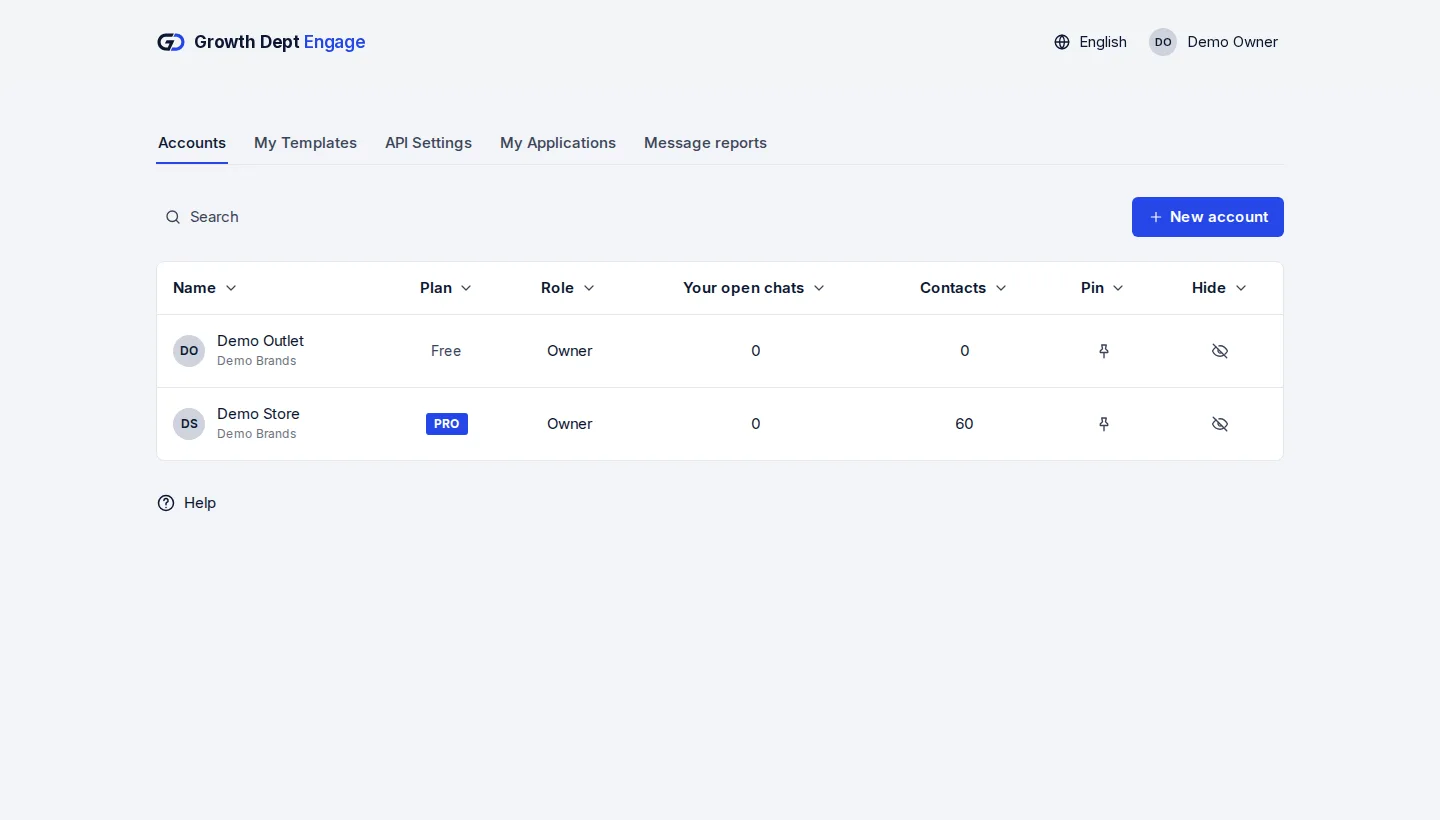
Step 1: Request access
Tell us about your brand and the channels you use, and we set up your account with you.
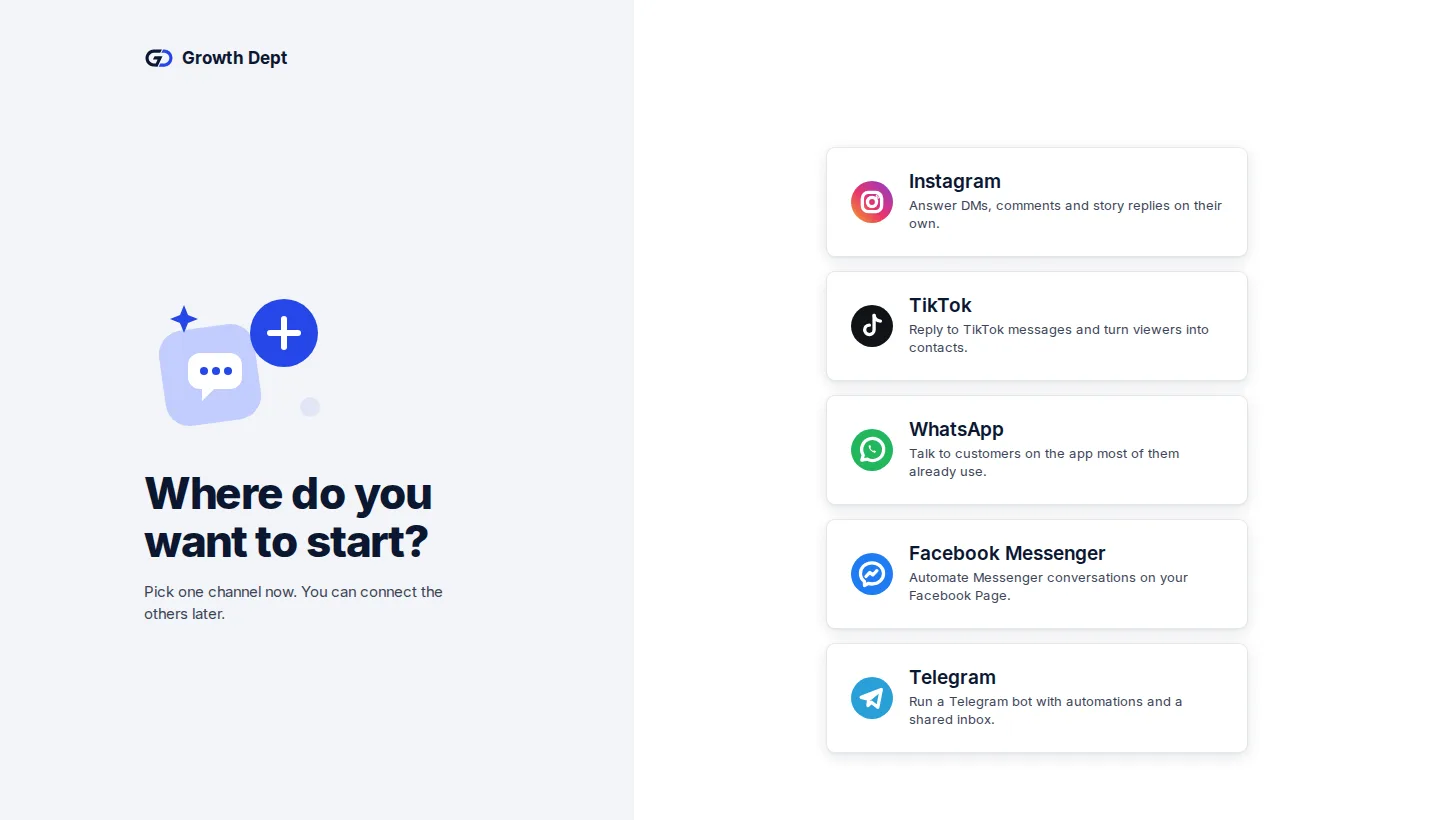
Step 2: Connect your channels
Connect a WhatsApp Business number through Meta's sign-up window.
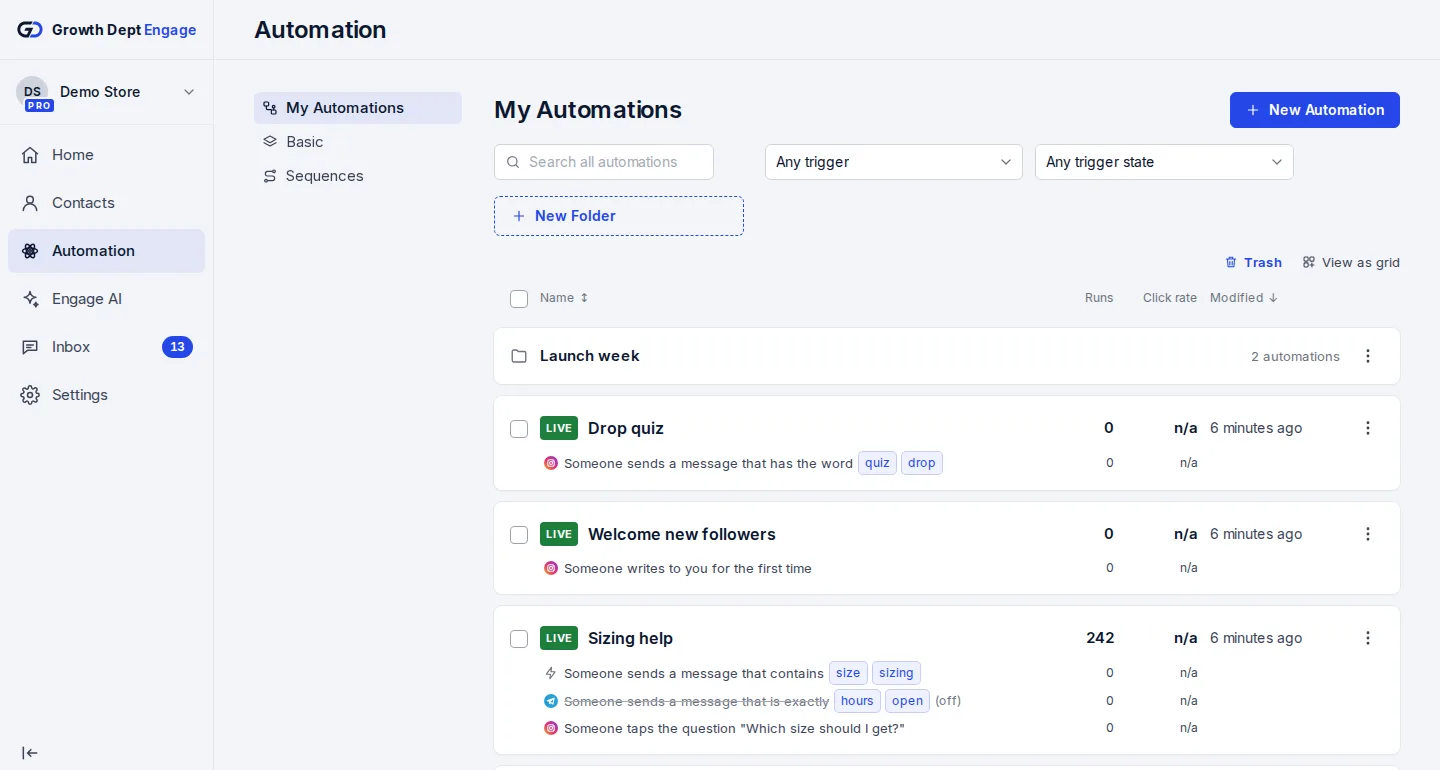
Step 3: Switch on an automation
Start from a template or build your own flow, try it on your own phone, then turn it on.


Add your other channels
- InstagramDMs, comments, stories and new followersLearn more Not live yet
- MessengerAnswers for your Facebook Page's messagesLearn more Not live yet
- TikTokReplies for the people your videos bring inLearn more Not live yet
- TelegramBots with buttons, commands and linksLearn more Live
- SMSTexts with consent and quiet hours built inLearn more Not live yet
- EmailEmails that follow up on a chatLearn more Live
- Website chatA chat window on your own siteLearn more Live