Every account's DMs, from one place
Run comments, DMs and story replies for every account you manage, reuse what works as templates, and hand clients the numbers.

- From Growth Dept
What social teams automate
- Launch-day comment to DM
- Giveaway entries
- Page comment replies
- Story mention thank-yous
- One template, many accounts
More accounts, the same hours in the day
Set up the engagement once per campaign and let it run, across every account you look after.
01 / 03
All your accounts in one profile
Switch between accounts in a click. Each has its own channels, contacts, team and settings.
02 / 03
Campaigns that run themselves
Comment triggers, keywords and story replies for each launch, with tags that show who joined in.
When
Comment contains DROP
Step 1
Public reply
Step 2
DM with the launch link
Step 3
Tag: launch day
03 / 03
Reuse what works
Save an account's automations as a template and install it on the next account, or share it by link.
Installed: Launch day kit
Every channel your clients use
- InstagramDMs, comments, stories and new followersLearn more Not live yet
- WhatsAppAnswers, updates and templates on WhatsAppLearn more Not live yet
- MessengerAnswers for your Facebook Page's messagesLearn more Not live yet
- TikTokReplies for the people your videos bring inLearn more Not live yet
- TelegramBots with buttons, commands and linksLearn more Live
- SMSTexts with consent and quiet hours built inLearn more Not live yet
- EmailEmails that follow up on a chatLearn more Live
- Website chatA chat window on your own siteLearn more Live
Campaigns social teams run
Each is a template you can install on another account.
See it work
When
Comment on the launch post
Step 1
DM with the link
Step 2
Tag: launch day
Everyone who comments gets the link.
Managing by hand
Ten accounts, ten inboxes
- Logging in and out all day
- Launch comments left unanswered
- Rebuilding the same setup each time
- Reports stitched by hand
Managing with Engage
One place for every account
- Switch accounts in a click
- Campaign replies on autopilot
- Templates you install in seconds
- Numbers for each account
Your accounts set up in three steps
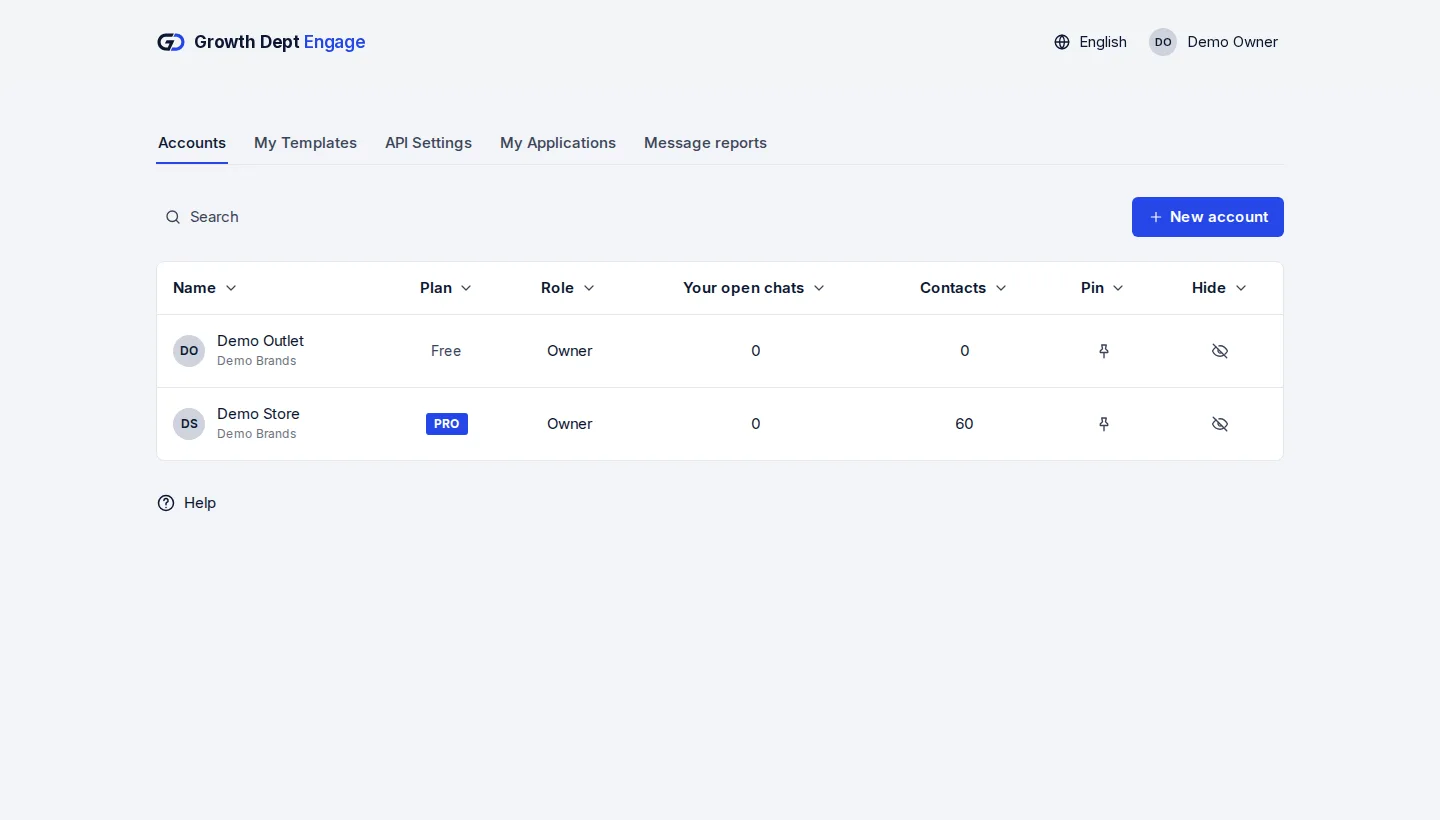
Step 1: Request access
Tell us about your brand and the channels you use, and we set up your account with you.
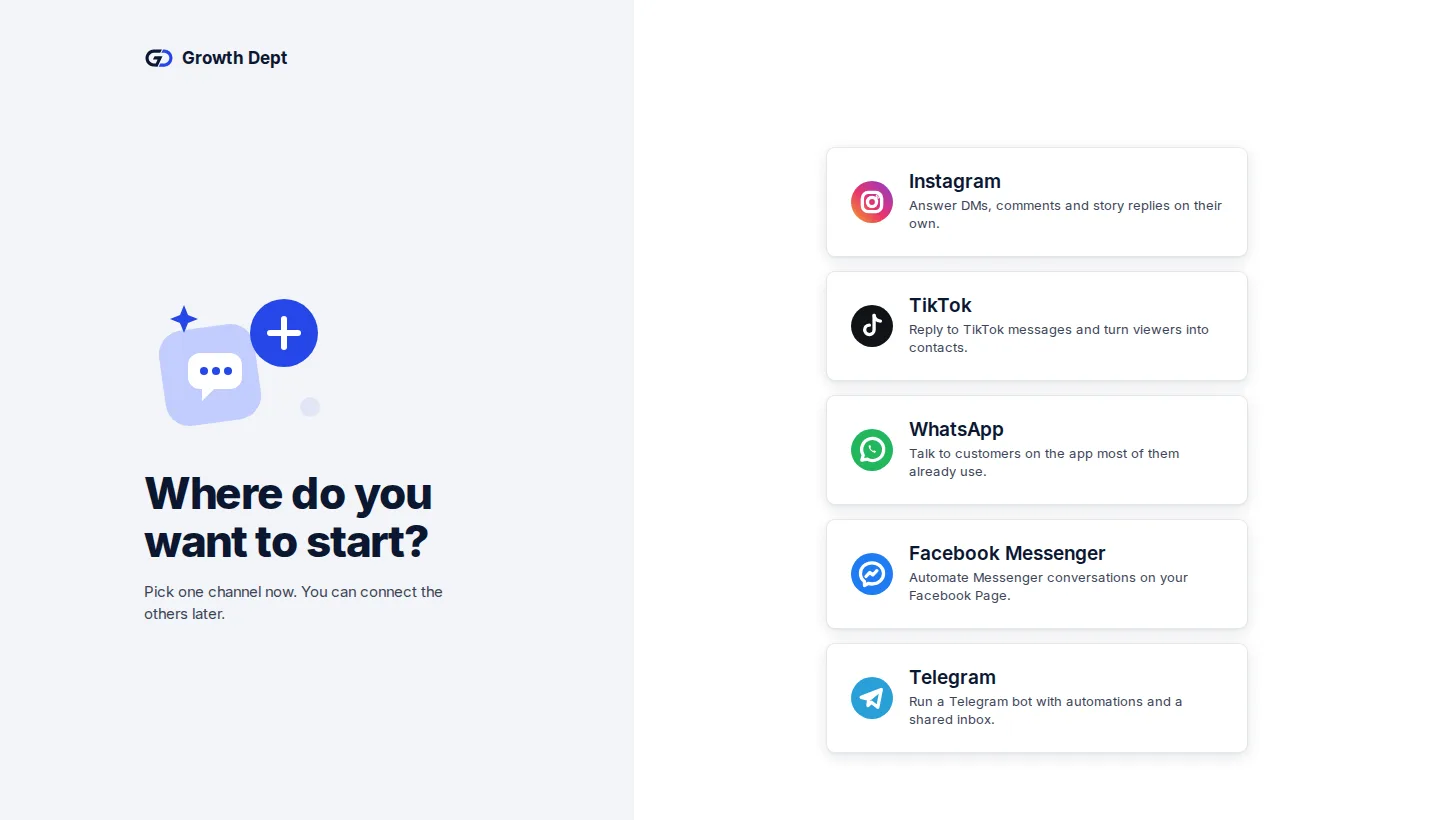
Step 2: Connect your channels
Add each account you manage and connect its channels.
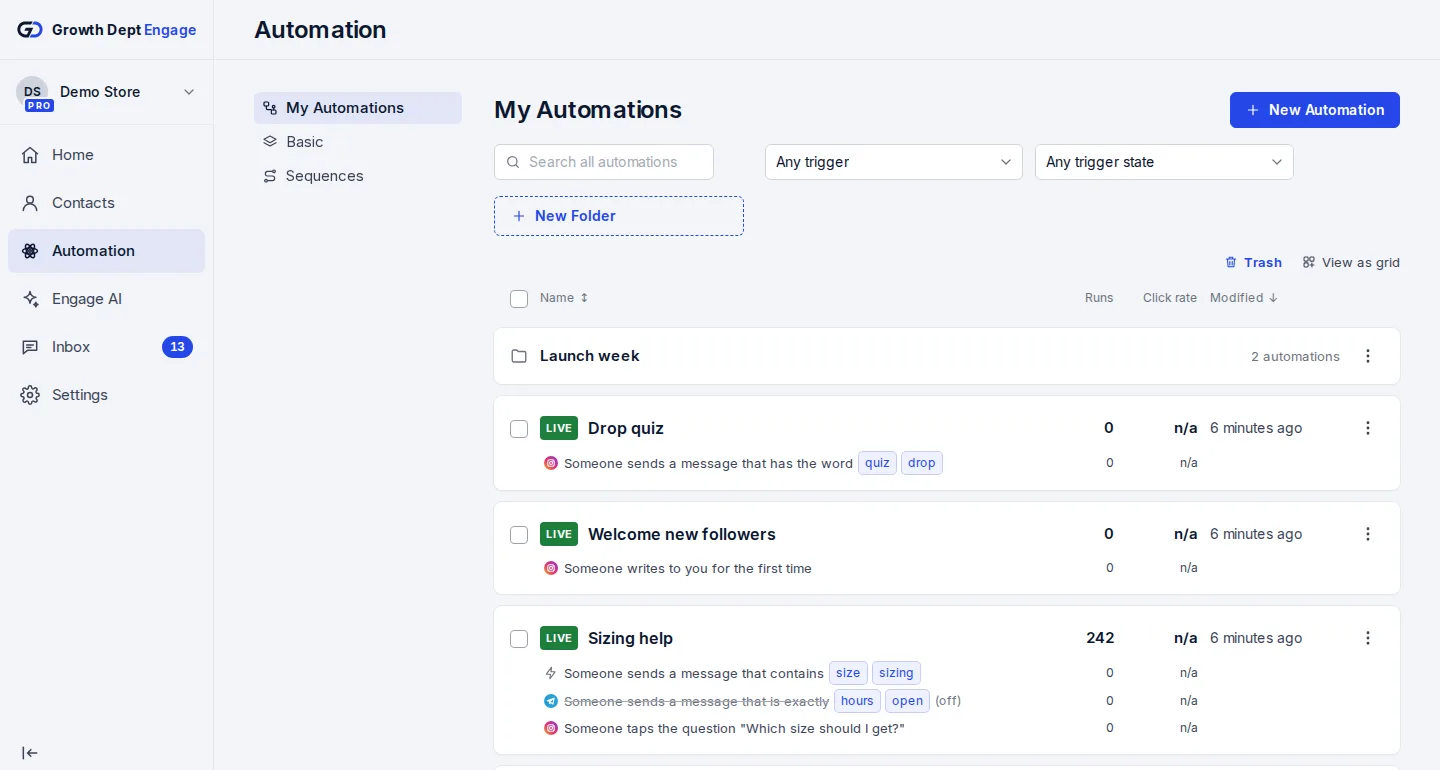
Step 3: Switch on an automation
Start from a template or build your own flow, try it on your own phone, then turn it on.

